Can I send sound from a laptop to a TV over an HDMI cable? In most cases, the answer is yes. HDMI is designed to carry both high-quality video and audio through a single cable, making it one of the easiest ways to connect your laptop to a TV.
However, if the sound isn’t playing through your TV, a few settings or compatibility issues may be preventing it. This guide explains how HDMI audio works and how to fix common problems.
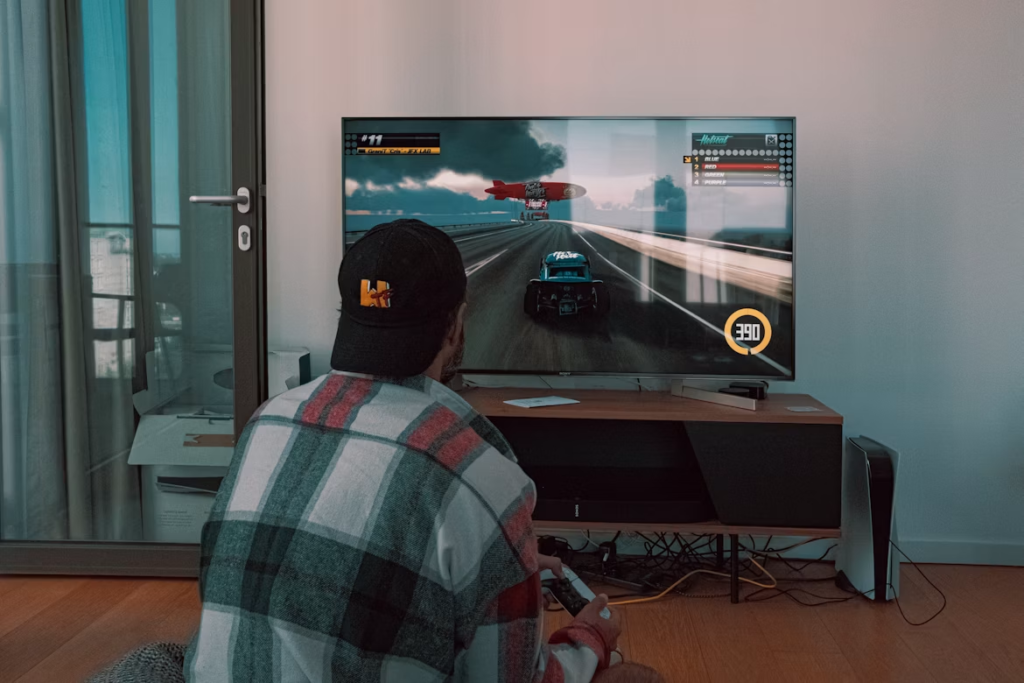
You’ve got the snacks ready, your friend is sitting on the couch with a second controller, and you just hooked your laptop up to the TV to play a local co-op game on the big screen. The title screen boots up looking gorgeous, and then you realize the room is dead silent.
Or worse, the game’s epic orchestral intro is tinny and weak because it’s playing entirely out of your laptop’s built-in speakers. It’s an incredibly common, frustrating hiccup.
By design, HDMI (High-Definition Multimedia Interface) is built to carry both video and audio through a single cord.
It is supposed to be entirely plug-and-play. However, laptops can be surprisingly stubborn about holding onto their native speakers, even when a massive TV is plugged right into them.
The good news is that you don’t need to buy a separate audio cable or download weird software to fix this.
Getting the sound to route through your TV is almost always just a matter of clicking a few buttons in your computer’s native system menus to give it a little nudge in the right direction.
Here is how to get your sound working on both Windows and Mac.
Also Read: Why Is My Google Search Going to Yahoo? (And How to Fix It)
Contents
How to Route Sound to the TV on Windows
Most of the time, Windows is smart enough to switch your audio over the second it detects an HDMI connection. When it doesn’t, you just need to tell the taskbar what to do.
- Connect the HDMI cable to both your laptop and the TV. Grab your TV remote and ensure the television is set to the correct HDMI input.
- Click the Speaker icon located in the bottom-right corner of the Windows taskbar (next to the clock).
- If you are on Windows 11, click the audio output selector icon (it looks like a little speaker with an arrow pointing right) at the end of the volume slider. On Windows 10, click the upward-facing arrow above the volume slider.

- A list of available playback devices will appear. Select your TV from this list. It will rarely say “TV”. Instead, look for your TV’s brand name, like “LG TV,” “Samsung Audio,” or “Sony.”
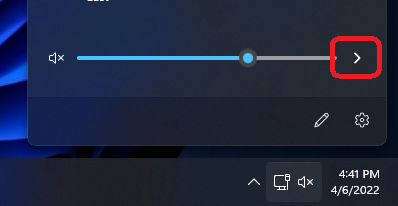
Once selected, your audio should immediately jump over to the TV speakers.
How to Route Sound to the TV on a Mac
macOS handles external displays elegantly, but if you’re plugging in a MacBook, you’re likely using a USB-C hub or an adapter to connect your HDMI cable. Sometimes, this extra hardware link causes the Mac to forget to route the audio with the video.
- Connect your Mac to the TV via your HDMI cable and/or adapter.
- Click the Apple logo in the top-left corner of your screen and select System Settings (or System Preferences if you are on an older version of macOS).
- Click on Sound in the sidebar, and then select the Output tab.
- You will see a list of devices. Click on your TV to highlight it.
- Double-check the bottom of that window to ensure the Mute checkbox hasn’t been accidentally ticked.
Troubleshooting: Why Is There Still No Sound?
Tech troubleshooting is annoying, especially when you’re just trying to relax and watch a movie. If you’ve forced the audio to the TV using the steps above and you still hear nothing, run through this quick checklist.
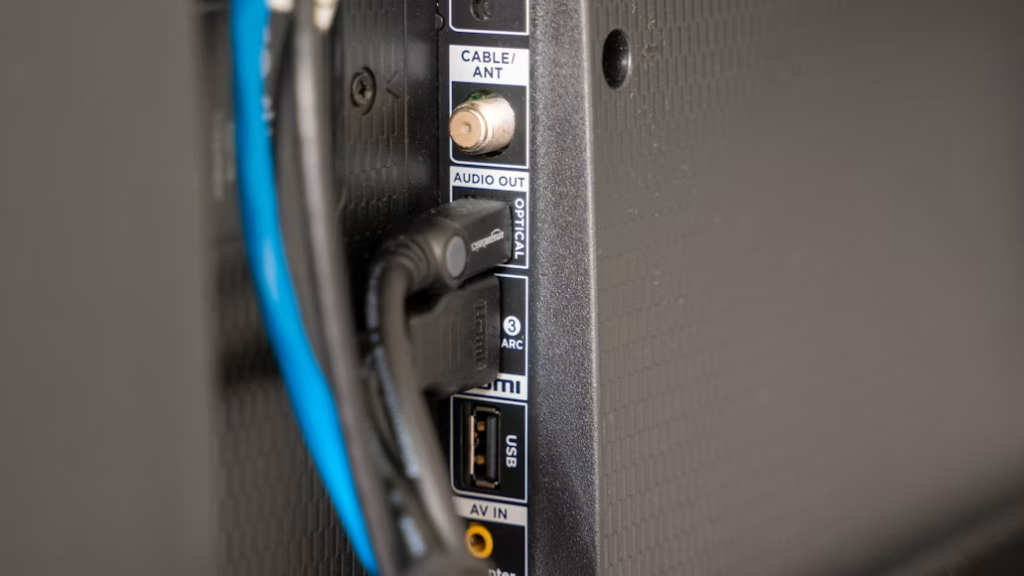
- Check the physical connection. Sometimes an HDMI cable looks like it’s plugged in, but it isn’t making full contact with the pins inside the port. Unplug it, blow out any dust, and push it firmly back in. If that fails, try a different HDMI port on the back of the TV.
- Your laptop’s volume slider and your TV’s remote control act completely independently of each other. If your PC volume is at 100% but the TV remote is turned all the way down, you’re going to get silence. Turn both up to a moderate level.
- If a program, like a web browser playing YouTube, or a specific video game, was already running before you plugged the HDMI cable in, it might still be stubbornly trying to push audio to the laptop speakers. Close the app completely and reopen it. This forces the software to recognize the new audio environment.
- On Windows, go to Settings > System > Sound, scroll down, and click Troubleshoot. Let the operating system try to fix itself. Avoid downloading third-party “driver updater” programs you find on Google; they are largely unnecessary resource hogs that cause more problems than they solve.
Also See: Why Did My Samsung Phone Stop Working? Try These Fixes First!
FAQ
Do I need a special type of HDMI cable to carry audio?
No. Every standard HDMI cable manufactured in the last fifteen years supports both audio and video transmission. Unless your cable is physically damaged or broken, it is fully capable of sending sound to your TV.
Can I use a VGA or DVI cable instead?
If you have an older laptop and are trying to use a VGA or DVI cable to connect to your TV, you won’t get any sound. Those older connection standards are designed exclusively for video.
If you must use one of them, you will need to buy a separate auxiliary audio cable (like a 3.5mm headphone jack cable) to run from the laptop’s headphone port to the TV’s audio input.