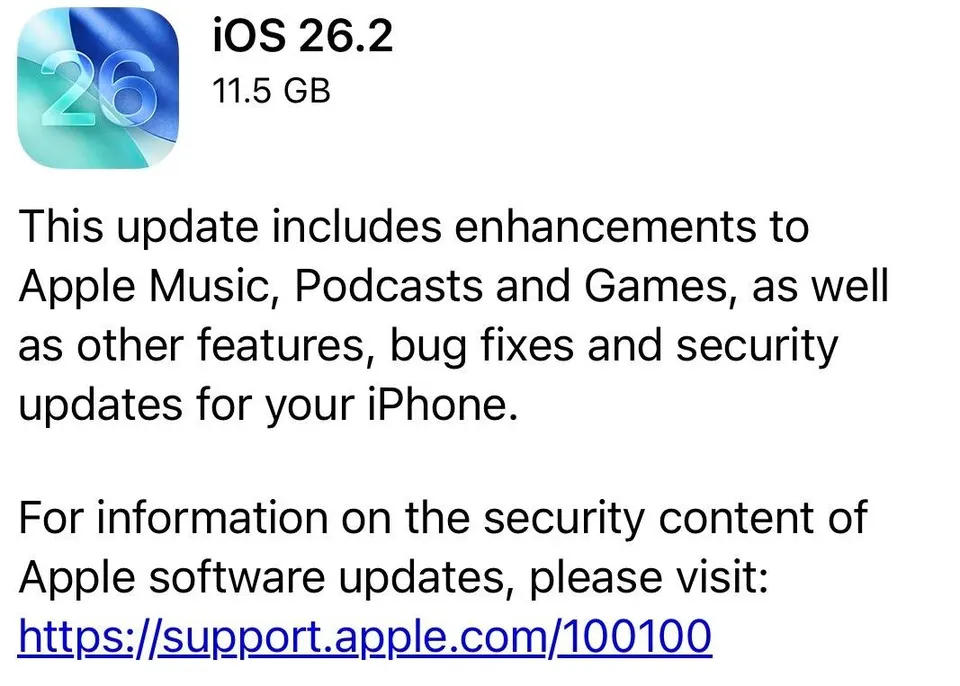
iOS 26.2 is out, and this is one of those releases that just quietly makes your iPhone nicer to live with. Fewer annoyances. More “oh, that’s better” moments.
Apple usually does this with even-numbered updates, and this one follows the pattern perfectly.
Here are the 10 best changes, with exactly where to find them and why you’ll actually care.
Contents
- 1 1. Urgent reminders that act like real alarms
- 2 2. Control how transparent your lock screen clock is
- 3 3. AirDrop to people who are not in your contacts
- 4 4. Flash alerts that actually work when your phone is face up
- 5 5. Podcasts now get automatic chapters
- 6 6. Lyrics finally work offline
- 7 7. Fix websites you accidentally blocked from saving passwords
- 8 8. Tables are now available in Freeform
- 9 9. Sleep score categories have changed
- 10 10. Apple News is easier to navigate
- 11 Bonus: Custom voice assistant button (Japan only, for now)
- 12 Wrapping it up
1. Urgent reminders that act like real alarms
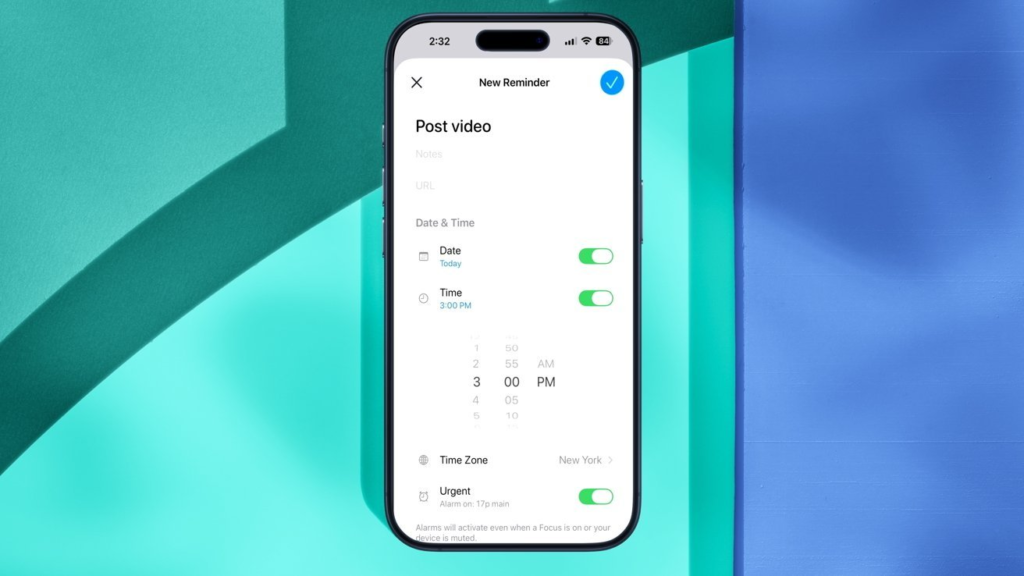
This is a good one.
Open Reminders and create a new reminder.
Add a date and time.
You’ll now see a new toggle called Urgent.
Turn that on.
Now, when the reminder time hits, your iPhone does not just send a quiet notification. It rings like an alarm. Same style as your morning wake-up alarm.
You can:
- Mark the task complete straight from the alarm screen
- Tap Stop if you need more time
If you stop it without completing the task, it sticks around as a Live Activity, reminding you again. Perfect for things you truly cannot forget.
Not something you’ll use for groceries. Very useful for real-life stuff.
2. Control how transparent your lock screen clock is

If your lock screen clock ever felt too see-through, this fixes it.
Wake your iPhone.
Long-press the lock screen.
Tap Customize.
Tap the Clock.
At the bottom, choose Glass. You’ll now see a slider.
Slide left for a very transparent look. Slide right for a more solid, readable clock.
Small tweak. Big comfort upgrade.
3. AirDrop to people who are not in your contacts
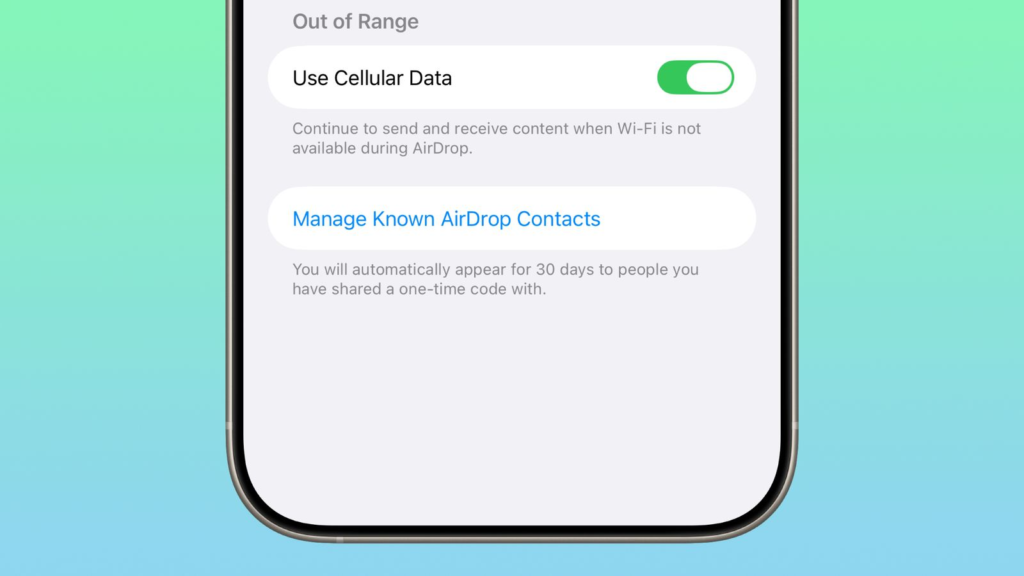
This one solves an awkward problem.
You no longer need to:
- Add someone as a contact
- Or open AirDrop to everyone
Instead, you can generate a six-digit code.
Share that code with the other person.
They enter it on their iPhone.
Once connected, you can AirDrop with them for up to 30 days. After that, you can renew it if needed.
Great for coworkers, classmates, or short-term projects. No contact clutter.
4. Flash alerts that actually work when your phone is face up
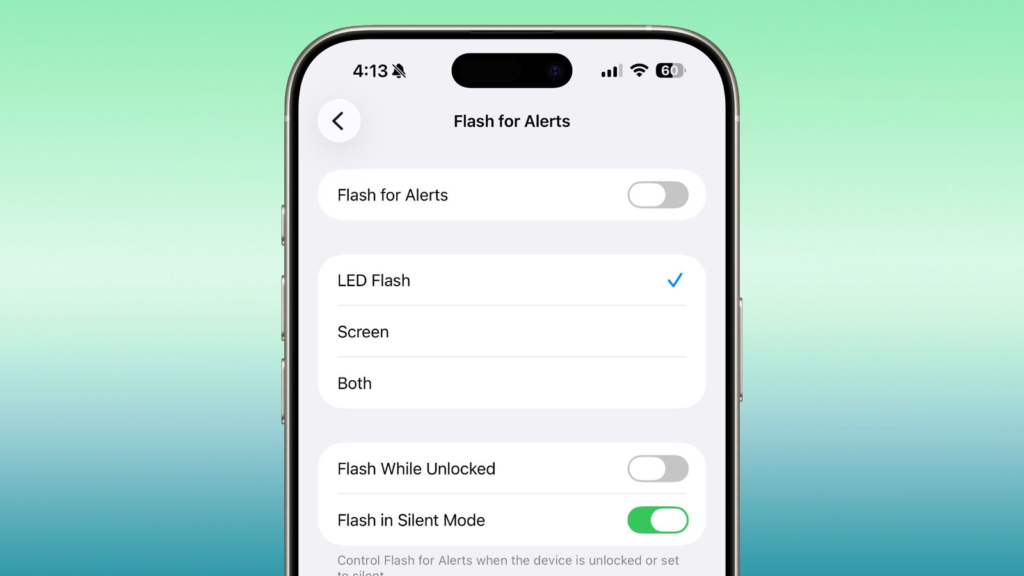
Flash alerts used to rely only on the rear LED. That helped if your phone was face down. Not so helpful otherwise.
Now you have options.
Go to Settings
Tap Accessibility
Go to Audio & Visual
Scroll down to Flash for Alerts
From here you can:
- Enable flash alerts
- Choose LED, Screen, or Both
- Decide if it works when unlocked
- Choose whether it works in silent mode
If you miss calls easily, this helps more than you’d expect.
5. Podcasts now get automatic chapters
Apple quietly did something very smart here.
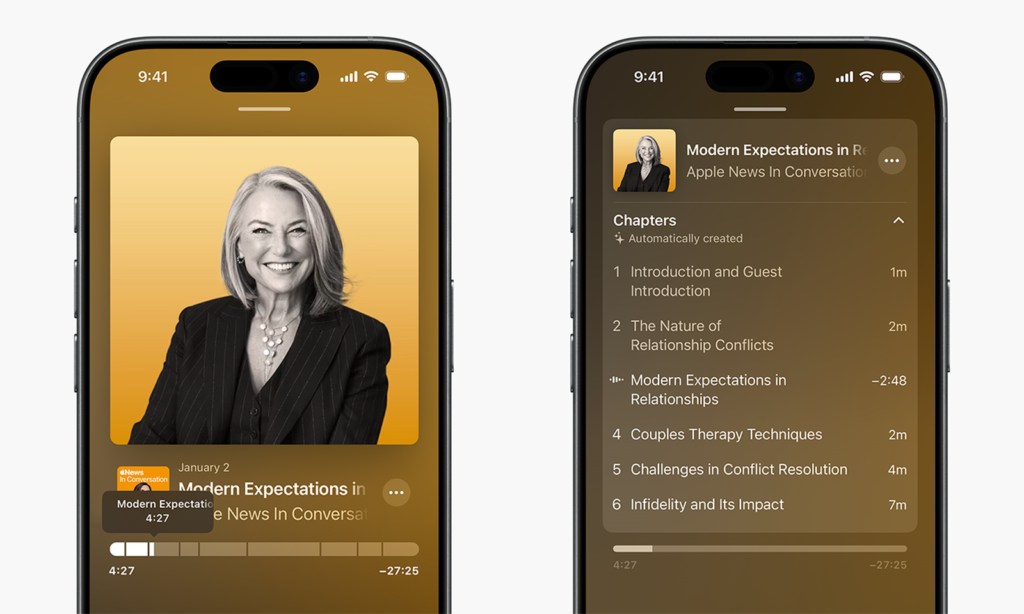
In the Podcasts app, episodes now get chapters automatically. Even if the creator didn’t add them.
You can:
- Scrub through chapters using the timeline
- Tap the chapter list from the episode view
- Jump straight to the part you care about
There’s more. If a podcast mentions:
- Music on Apple Music
- A show on Apple TV
- An article from Apple News
- Another podcast
A small on-screen link appears so you can tap straight into it.
Scroll down on the episode page, and you’ll also see a new From This Episode section listing everything mentioned.
Perfect if you want to come back later.
6. Lyrics finally work offline

This one feels obvious, but it wasn’t always this way.
Before:
- Downloaded music worked offline
- Lyrics did not
Now:
- Download a song
- Lyrics download with it
No signal needed. Flights just got better.
7. Fix websites you accidentally blocked from saving passwords
We’ve all done this by mistake.
You log into a site. The save password prompt appears. You tap “No” without thinking.
Now you can undo that.
- Go to Settings
- Scroll down and tap Apps
- Choose Passwords
- Scroll to the bottom
- Tap Show Excluded Websites
Unlock with Face ID or Touch ID.
You’ll see every site where you blocked password saving.
Tap the red minus button next to any site you want to remove.
Next time you log in, iOS will ask to save the password again.
Quiet fix. Very appreciated.
8. Tables are now available in Freeform
If you use Freeform, this adds a lot.
Open a Freeform canvas.
Tap the paperclip icon at the bottom.
Choose Add Table.
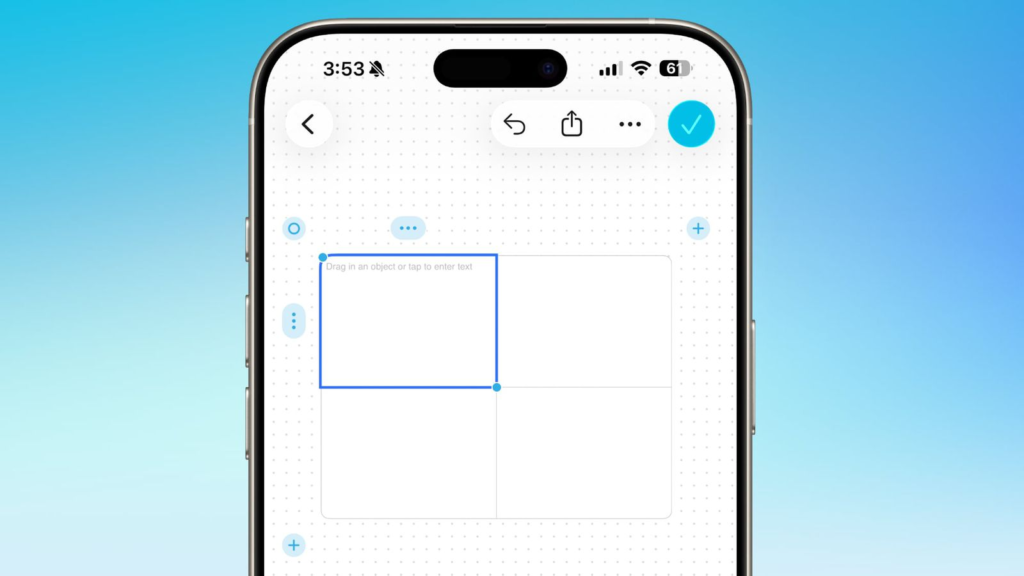
You start with a 2×2 table. You can:
- Add rows and columns using the plus buttons
- Tap into cells to type
- Drag images or shapes into cells
- Resize the table using the corner and edge handles
It turns Freeform into a much better planning tool.
9. Sleep score categories have changed
If you track sleep using an Apple Watch, this one is subtle but noticeable.
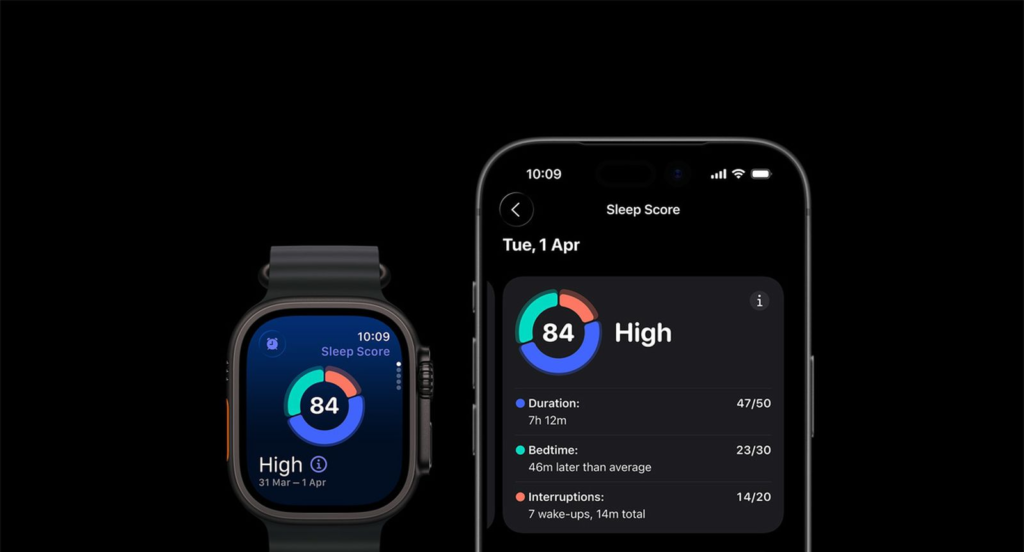
Your sleep score is still based on:
- Sleep duration
- Bedtime
- Night interruptions
What changed is how Apple labels the scores.
The ranges are tighter now. High scores are harder to earn. Very high scores are rare.
The goal is more realistic feedback instead of overly generous ratings.
You might see lower scores at first. That’s normal.
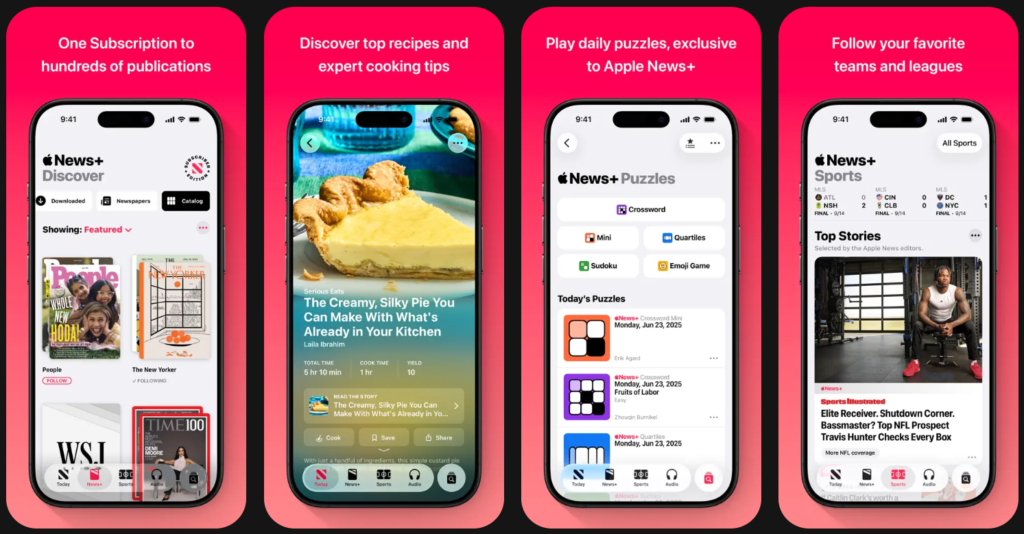
Open Apple News.
Tap Today.
You’ll now see clear categories at the top:
- Sports
- Entertainment
- Business
- Food
No more digging around to find them. It feels faster and calmer right away.
This one hasn’t rolled out globally yet, but it’s interesting.
In Japan, some users report the ability to change what the side button does when triggering a voice assistant. This could lay the groundwork for assigning alternatives like Gemini, Alexa, or even ChatGPT in the future.
If true, it suggests Apple may be preparing for deeper third-party assistant integration in later updates.
Wrapping it up

iOS 26.2 is not flashy, but it fixes the small stuff that quietly annoyed you. It respects your attention. It makes your iPhone feel smoother day to day. And those are the updates that age the best.
Don’t expect much from iOS 26.3. The next major shift will likely come with iOS 26.4, where rumors suggest we might finally see a serious Siri overhaul.
Which feature are you actually going to use first? Be honest. Are you still hopeful about a smarter Siri, or have you stopped caring? I’m curious.