You type a query into your Chrome address bar, hit Enter, and wait for the familiar Google results page. Instead, the screen redirects through a weird URL and dumps you onto a Yahoo search page. You wonder, “Why is my Google search going to Yahoo?”
You aren’t going crazy, and you didn’t accidentally change your default search engine in your sleep.
If your browser is stubbornly routing your Google searches to Yahoo, your computer has picked up a browser hijacker, a specific type of malware designed to force your web traffic through channels that make someone else money.
Here’s what is happening behind the scenes, and how to remove it from your machine.
Why Is My Google Search Going to Yahoo?

A browser hijacker is a piece of adware that modifies your web browser’s settings without your permission. It usually sneaks onto your system bundled with “free” software downloads, rogue browser extensions, or poorly coded apps masquerading as native utilities (like PDF converters or generic video players).
But why Yahoo? Yahoo isn’t actually the one hacking your computer.
These hijackers abuse affiliate revenue networks. When you search for something, the malware intercepts the query and routes it through a custom tracking portal before landing on legitimate Yahoo search results.
By acting as the “referrer” for your search, the malware developers skim a fraction of a cent off the ad revenue generated by your query. Yahoo’s search feed is simply being exploited as a vehicle for the scam.
You May like: Why Did My Samsung Phone Stop Working? Try These Fixes
Step 1: Kill the Infection First
If you jump straight into your browser settings to change Yahoo back to Google, you will likely find that the problem comes right back the next time you restart your computer. The underlying adware will just overwrite your settings again.
Before touching your browser, you need to quarantine the malware:
- Download the free version of Malwarebytes (or your preferred anti-malware tool).
- Run a full system scan.
- Quarantine and delete any flagged threats.
Only after the system is clean should you proceed to fix the browser.
Step 2: The Manual Scrub

Once the malware’s sorted, you need to manually repair the damage it left behind in your browser’s configuration. Scroll down to your browser of choice to reset your search engine.
Google Chrome
- Click the three-dot menu in the top right and select Settings.
- On the left sidebar, click Search engine.
- Click Manage search engines and site search.
- Scroll down to the list of search engines. Find the rogue Yahoo entry, click the three dots next to it, and select Delete.
- Find Google, click the three dots, and select Make default.
Microsoft Edge
- Click the three-dot menu in the top right and go to Settings.
- On the left, click Privacy, search, and services.
- Scroll to the very bottom of the page and click Address bar and search.
- Click Manage search engines.
- Remove Yahoo from the list and set Google back to default.
Mozilla Firefox
- Click the three-line menu (hamburger icon) and select Settings.
- Click Search on the left panel.
- Under Default Search Engine, open the dropdown menu and select Google.
- Scroll down to Search Shortcuts and remove any unrecognized or suspicious entries.
Apple Safari (Mac)
- Open Safari, click Safari in the top menu bar, and select Settings (or Preferences).
- Go to the Search tab.
- Open the Search engine dropdown and change it back to Google.
Note for Mac users: Hijackers on macOS often use configuration profiles to lock these settings. Open your Mac’s System Settings, search for Profiles, and delete any profiles you don’t recognize.
Opera
- Click the Opera logo in the top left and select Settings.
- Scroll down to the Search engine section.
- Use the dropdown to change the default from Yahoo to Google.
- Click Manage search engines to delete the hijacker’s custom Yahoo URL.
Brave
- Click the three-line menu and select Settings.
- Click Search engine on the left.
- Ensure both Normal Window and Private Window are set to Google. Hijackers sometimes target private browsing sessions separately to evade detection.
Vivaldi
- Click the Vivaldi menu (or the gear icon in the bottom left) to open Settings.
- Click Search in the sidebar.
- Highlight Google in your list of search engines and check the Set as Default Search box.
- Ensure the Keep Last Selected Search Engine box isn’t inadvertently pulling from a hijacked tab.
Also See: Why ChatGPT Gets Things Wrong?
Step 3: Cleaning Up the Leftovers
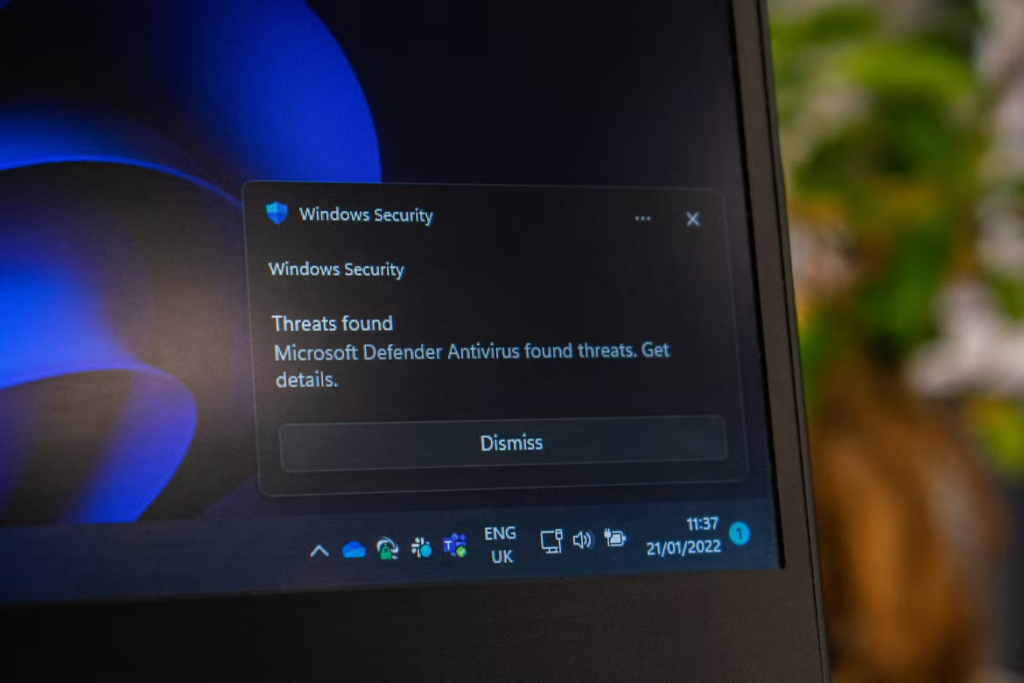
Even with the search engine fixed, you should check two final hiding spots where hijackers linger.
- Rogue Extensions
Open your browser’s extensions or add-ons page. Look for anything claiming to be a “Safe Search,” “PDF Tool,” or anything you don’t explicitly remember installing. Disable and remove them immediately.
- The Shortcut Trick
Sometimes, malware alters the actual desktop shortcut you click to open your browser. It appends a URL to the target path so the browser opens a specific Yahoo page every time it launches.
Right-click your Chrome/Edge/Firefox desktop shortcut and select Properties.
Look at the Target field. It should end in “.exe”. If there is a web address pasted after the quotation marks (e.g., chrome.exe” http://search.yahoo), delete the web address, click Apply, and hit OK.
Also, Read: Laptop Pointer Not Moving After Startup? Try These Fixes
Frequently Asked Questions
Why is Yahoo letting this happen?
They aren’t doing it intentionally. Scammers exploit search syndication agreements to generate fraudulent ad clicks. Yahoo frequently tries to shut these abusive affiliates down, but the malware developers just spin up new proxy URLs to bypass the blocks.
Do I need to completely uninstall my browser?
Usually, no. A thorough Malwarebytes scan, combined with resetting your default search engine and clearing out sketchy extensions, is almost always enough to fix the problem without losing your bookmarks and history.
Are Macs immune to the Yahoo redirect virus?
Not at all. Mac users get hit with this frequently. On macOS, it usually sneaks in via fake sketchy Safari extensions or malicious configuration profiles that lock the browser’s homepage.
Can this malware steal my passwords?
Most browser hijackers are strictly focused on generating ad revenue and tracking your search habits. However, because they are intercepting your web traffic, some advanced variants can scrape data. Changing your important passwords after you have completely cleaned the system is always a smart precaution.