Few computer problems are as frustrating as turning on your laptop only to discover that the cursor won’t move. Whether you’re using a Windows laptop, MacBook, or a Chromebook, a frozen pointer can make your device feel completely unusable.
The good news is that this issue is often caused by a simple bug, a disabled touchpad, or an outdated driver, not a serious hardware failure.
In this guide, we’ll walk through the most effective fixes, starting with the easiest solutions and progressing to more advanced troubleshooting steps.
Why Is My Laptop Pointer Not Moving?

A laptop pointer that stops responding after startup can occur for several reasons, including:
- The touchpad was accidentally disabled.
- An external mouse is interfering with the touchpad.
- The operating system encountered a startup error.
- Touchpad drivers are corrupted or outdated.
- Recently installed software is causing conflicts.
- The touchpad hardware is damaged.
Before assuming the worst, work through the fixes below in order.

Since your pointer isn’t working, you’ll need to rely on the keyboard to navigate your system.
Windows
- Press Windows + I to open Settings.
- Use Tab to move between options.
- Use the Arrow keys to navigate menus.
- Press Enter to select items.
- Press Alt + Tab to switch between open windows.
macOS
- Press Command + Space to open Spotlight Search.
- Type the app or setting you want to open and press Enter.
- Use Tab, Arrow keys, and Spacebar to navigate menus.
ChromeOS
- Press Search + Shift + S to access settings and search features.
- Use Tab and Arrow keys to move through menu options.
- Press Enter to make selections.
Fix 1: Restart Your Laptop
A temporary system glitch can prevent the touchpad or trackpad from loading properly during startup.
Windows
- Press Ctrl + Alt + Delete.
- Select the power icon.
- Choose Restart.
macOS
- Press Control + Command + Power Button.
- Wait for the Mac to restart.
ChromeOS
- Press the power button.
- Select Restart or power off and turn the device back on.
After restarting, check whether the pointer responds normally.
Fix 2: Make Sure the Touchpad Isn’t Disabled
Many laptops include keyboard shortcuts that disable the touchpad. It’s surprisingly easy to trigger them accidentally.
Windows
- Look for a function key with a touchpad icon (often F3, F5, F7, F9, or F11).
- Press Fn + the corresponding function key.
- Open Settings > Bluetooth & Devices > Touchpad.
- Verify that the touchpad is enabled.
Check BIOS or UEFI Settings
If the touchpad remains disabled:
- Restart the laptop.
- Enter BIOS/UEFI setup (commonly by pressing F2, F10, Del, or Esc during startup).
- Locate the internal pointing device setting.
- Ensure it is enabled.
macOS
- Open System Settings.
- Select Trackpad.
- Review trackpad settings and ensure no accessibility feature is interfering with normal operation.
ChromeOS
- Open Settings.
- Select Device.
- Choose Touchpad.
- Confirm touchpad functionality is enabled.
Fix 3: Disconnect External Devices
External mice, docking stations, and USB peripherals can sometimes create conflicts.
- Disconnect any wired mouse.
- Remove wireless mouse receivers.
- Unplug external keyboards, docking stations, and adapters.
- Restart the laptop.
If the touchpad works after disconnecting a device, you’ve likely identified the source of the problem.
Fix 4: Update or Reinstall Touchpad Drivers
Driver issues are one of the most common causes of an unresponsive pointer on Windows systems.
Windows
- Press Windows + X.
- Open Device Manager.
- Expand Mice and other pointing devices.
- Right-click the touchpad device.
- Select Update Driver.
If updating doesn’t help:
- Right-click the device again.
- Select Uninstall Device.
- Restart the laptop.
- Windows should automatically reinstall the driver.
macOS
Apple manages trackpad drivers through macOS updates. If your trackpad isn’t working:
- Open System Settings.
- Go to General > Software Update.
- Install available updates.
- Restart the Mac.
ChromeOS
ChromeOS updates include hardware compatibility fixes.
- Open Settings.
- Select About ChromeOS.
- Click Check for Updates.
- Install any available updates.
Fix 5: Check for Operating System Updates
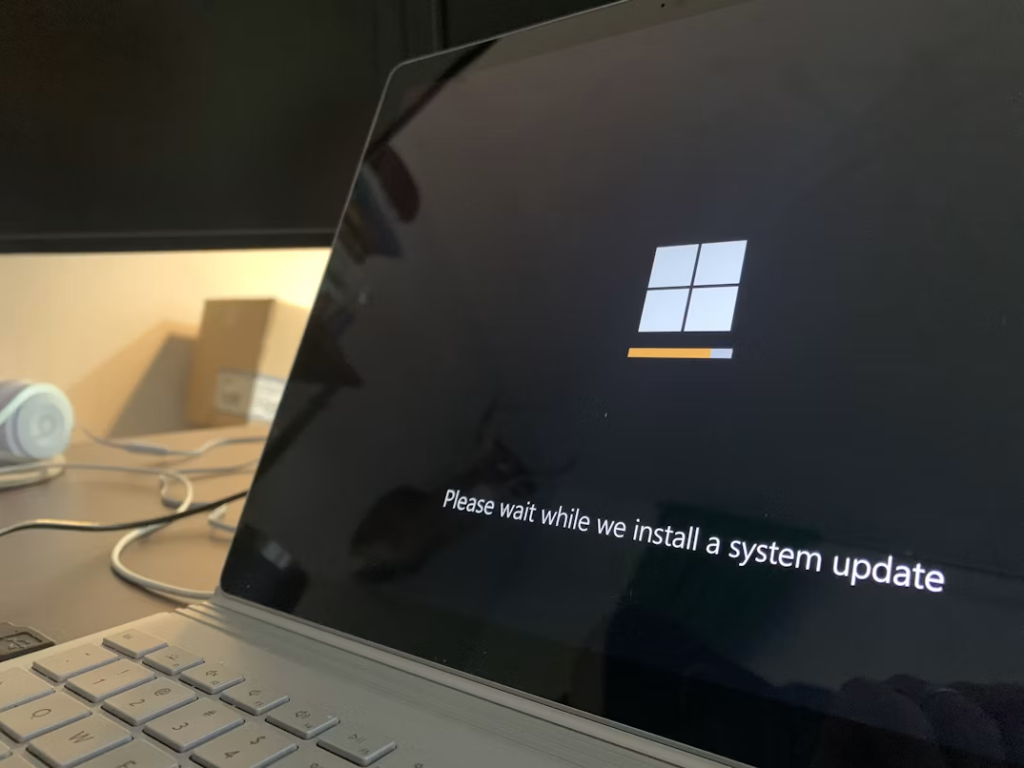
Outdated operating systems can cause hardware compatibility issues.
Windows Update
- Open Settings.
- Navigate to Windows Update.
- Install all available updates.
- Restart your device.
macOS Software Update
- Open System Settings.
- Select General > Software Update.
- Install pending updates.
ChromeOS Update
- Open Settings.
- Go to About ChromeOS.
- Check for updates and install them.
Keeping your operating system current helps eliminate known bugs affecting input devices.
Fix 6: Boot Into Safe or Diagnostic Modes
If the touchpad works in Safe Mode, a third-party application is likely causing the issue.
Windows Safe Mode
- Hold Shift while selecting Restart.
- Choose Troubleshoot > Advanced Options > Startup Settings.
- Select Safe Mode.
- Test the touchpad.
macOS Safe Mode
- Shut down the Mac.
- Hold the power button until startup options appear.
- Select your startup disk.
- Hold Shift and choose Continue in Safe Mode.
ChromeOS Troubleshooting
ChromeOS doesn’t have a traditional Safe Mode, but restarting and disabling extensions can help identify conflicts.
Fix 7: Disable Recently Installed Apps
The issue may have started after installing new software.
Windows
Check for:
- Device management tools
- Mouse customization software
- Security applications
- Driver update utilities
Disable them temporarily and restart.
macOS
Review:
- Login items
- Third-party system utilities
- Hardware management software
ChromeOS
Disable recently installed:
- Browser extensions
- Android apps
- Linux applications
Test the touchpad after each change.
Fix 8: Run Built-In Diagnostic Tools
Diagnostics can help identify hardware problems.
Windows
- Run manufacturer diagnostic tools.
- Check Device Manager for warning icons.
- Use Windows hardware troubleshooting features.
macOS
Use Apple Diagnostics:
- Shut down the Mac.
- Press and hold the power button during startup.
- Follow the on-screen instructions.
ChromeOS
Many Chromebooks include built-in diagnostics:
- Open the Launcher.
- Search for Diagnostics.
- Run the touchpad and hardware tests.
Fix 9: Check for Physical Hardware Problems
If none of the software fixes work, inspect the hardware.
Common warning signs include:
- Touchpad clicks but the cursor doesn’t move.
- The touchpad responds intermittently.
- Recent liquid spills.
- Physical damage from drops.
- A swollen battery pushing against the touchpad.
A swollen battery is particularly important because it can physically interfere with touchpad operation and should be addressed immediately.
What If the Pointer Still Won’t Move?
At this point, more advanced recovery options may be necessary.
Windows
Try:
- System Restore
- Driver rollback
- BIOS updates
- Manufacturer recovery tools
macOS
Consider:
- Resetting NVRAM (Intel Macs)
- Resetting the SMC (Intel Macs)
- Reinstalling macOS
ChromeOS
Try:
- Powerwash (factory reset)
- ChromeOS Recovery Mode
- Reinstalling the operating system
Before performing major recovery procedures, back up important files whenever possible.
Read: Why Did My Galaxy A23 Phone Suddenly Stop Working? Causes and Fixes
Tips to Prevent Future Pointer Problems
To reduce the likelihood of touchpad issues in the future:
- Keep your operating system updated.
- Install driver updates from trusted sources.
- Avoid unnecessary startup applications.
- Shut down your laptop properly.
- Protect your device from spills and impact damage.
- Regularly check for firmware and BIOS updates.
Frequently Asked Questions
Why is my cursor frozen after startup?
A frozen cursor is usually caused by a disabled touchpad, driver issue, software conflict, or temporary operating system glitch.
Why does an external mouse work but the touchpad doesn’t?
This often indicates a touchpad-specific issue, such as disabled settings, corrupted drivers, or hardware failure.
Can a software update break my touchpad?
Yes. Occasionally, operating system updates can introduce driver compatibility issues that affect touchpad functionality.
How do I use my laptop if the pointer isn’t working?
You can navigate most operating systems using keyboard shortcuts, including Tab, Arrow keys, Enter, and accessibility features.
How do I know if my touchpad is physically damaged?
Signs include inconsistent response, visible damage, failure after a spill, or no response even after software troubleshooting and diagnostics.
Also See: HP Computer Wireless Headphones Not Working? Here’s How to Fix It
Conclusion
A laptop pointer that won’t move after startup can be alarming, but in most cases, the solution is straightforward.
Start with simple fixes such as restarting your device, checking whether the touchpad is disabled, and disconnecting external peripherals. If those steps don’t work, move on to updating drivers, installing operating system updates, and running diagnostic tools.
By following the platform-specific instructions, you’ll be able to identify whether the problem is caused by software, settings, or hardware, and get your laptop working again as quickly as possible.