There’s a very specific panic that hits when you put on your wireless headphones, hit play, and realize the audio is actually blasting from your HP laptop’s speakers in a dead-silent library.
If you are dealing with the frustration of HP computer wireless headphones not working, you aren’t alone.
The culprit is often just Windows being stubborn, dropping Bluetooth connections and hiding the issue behind a settings screen that cheerfully insists your device is “Connected.”
Before you dig out a tangled pair of wired earbuds, take a breath. We’re going to walk through exactly how to get your PC and headphones talking to each other again, starting with the quickest hardware fixes before digging into HP’s system quirks.
Let’s get your sound back.
HP Computer Wireless Headphones Not Working: The Basic Hardware Checks
It is tempting to dive straight into system settings, but many Bluetooth issues stem from simple hardware miscommunications. Eliminating these variables first saves time and frustration.
- Verify the Battery Level
When battery life drops below 15%, many wireless headsets actively throttle their Bluetooth signal to conserve power. This leads to weak, stuttering, or entirely dropped connections. Plug your headphones in for ten minutes; if the audio suddenly returns, the battery was the issue.
- Stop the Device Tug-of-War
If your headphones feature multi-point pairing, they may be prioritizing another device over your HP computer. It is highly common for a headset to quietly connect to a smartphone in your pocket or a tablet in the next room.
The Fix: Temporarily turn off Bluetooth on your phone or any other previously paired devices. This forces the headphones to search exclusively for your laptop.
- The Dual Restart
Restarting is a practical step to clear temporary system states and hardware hangups.
- Power your headphones completely off, wait a few seconds, and turn them back on.
- Restart your HP computer. A fresh boot resets the native Bluetooth radio and clears background processes that may be interrupting the audio signal.
Windows Bluetooth Quirks
Because HP relies on the Windows operating system, troubleshooting often means dealing with Windows’ specific Bluetooth behaviors. Sometimes the operating system simply misroutes the audio or gets out of sync with the hardware.
- Toggle the Windows Bluetooth Radio
The Windows quick settings panel can sometimes display that Bluetooth is “On” even when the underlying radio has stalled.
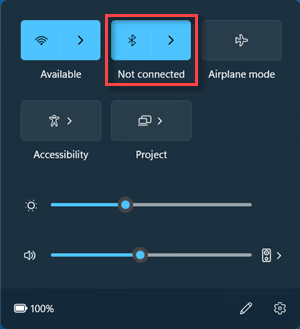
- Click the network/volume cluster on the right side of your taskbar.
- Click the Bluetooth icon to turn it off, wait a few seconds, and click it again to turn it back on. This forces the system to re-initialize the connection.
- Re-Pair the Headphones
If the connection is corrupted, Windows will refuse to send audio, even if the device says “Connected.” Starting fresh is often the fastest fix.
- Press the Windows Key + I to open Settings, then navigate to Bluetooth & devices.
- Find your headphones in the list, click the three dots next to the name, and select Remove device.
- Put your wireless headphones back into their dedicated pairing mode (usually by holding the power button until a light flashes).
- Click Add device in Windows and pair them again.
- Check the Output Source
Windows might be connected to your headphones perfectly but is still sending the audio to the built-in HP speakers.
- Click the Speaker icon in your taskbar.
- Click the small arrow or sound output icon next to the volume slider.
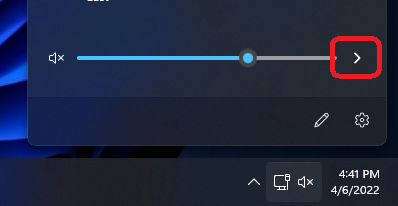
- Select your wireless headphones from the list of available audio devices.
HP-Specific Audio and Driver Troubleshooting
If the basic toggles didn’t work, the issue likely lies deeper in how your HP hardware is interacting with the operating system. It is incredibly common for a background Windows update to corrupt a Bluetooth driver and break your audio without throwing a single error message.
Here is how to dig into the system and fix the root of the problem.
- The Native Fix
Device Manager Rather than relying on heavy, resource-draining diagnostic apps, the cleanest way to fix driver corruption is directly through Windows’ native Device Manager.
- Right-click the Start button and select Device Manager.
- Click the arrow next to Bluetooth to expand the list.
- Look for your wireless headphones or the main Bluetooth adapter (often labeled Intel or Realtek). If there is a tiny yellow exclamation mark next to it, the driver has failed.
- Right-click the faulty driver and select Uninstall device.
- Restart your HP computer.
Upon reboot, Windows will automatically locate and install a clean, fresh version of that native driver.
- Disable “Audio Enhancements”
Windows includes built-in audio enhancements designed to make things sound better, but they frequently conflict with third-party wireless headsets, resulting in total silence.
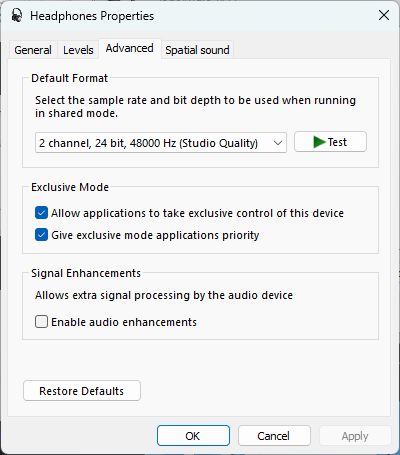
- Press the Windows Key + R, type mmsys.cpl, and hit Enter. This opens the classic Sound control panel.
- Right-click your wireless headphones in the list and select Properties.
- Navigate to the Enhancements tab (or the Advanced tab, depending on your specific HP model).
- Untick the box that says Enable audio enhancements. Click Apply, then OK.
- HP Support Assistant (The Automated Route)
If manually handling drivers in the Device Manager didn’t solve the problem, you can leverage HP’s proprietary tool. While it is a heavier piece of software, it is specifically designed to scan your motherboard for missing OEM updates.
- Open the HP Support Assistant (it comes pre-installed on most HP machines; you can find it by searching your Start menu).
- Navigate to the Fixes & Diagnostics tab.
- Run the Audio Check and let the software automatically patch any missing HP-specific firmware that Windows Update might have overlooked.
Advanced Fixes for Stubborn Issues
If you’ve made it this far and your headphones are still completely silent, the problem isn’t a simple settings mismatch. This is where we look at physical environmental factors and deep, system-level bugs.
- Clear the Airwaves (Signal Interference)
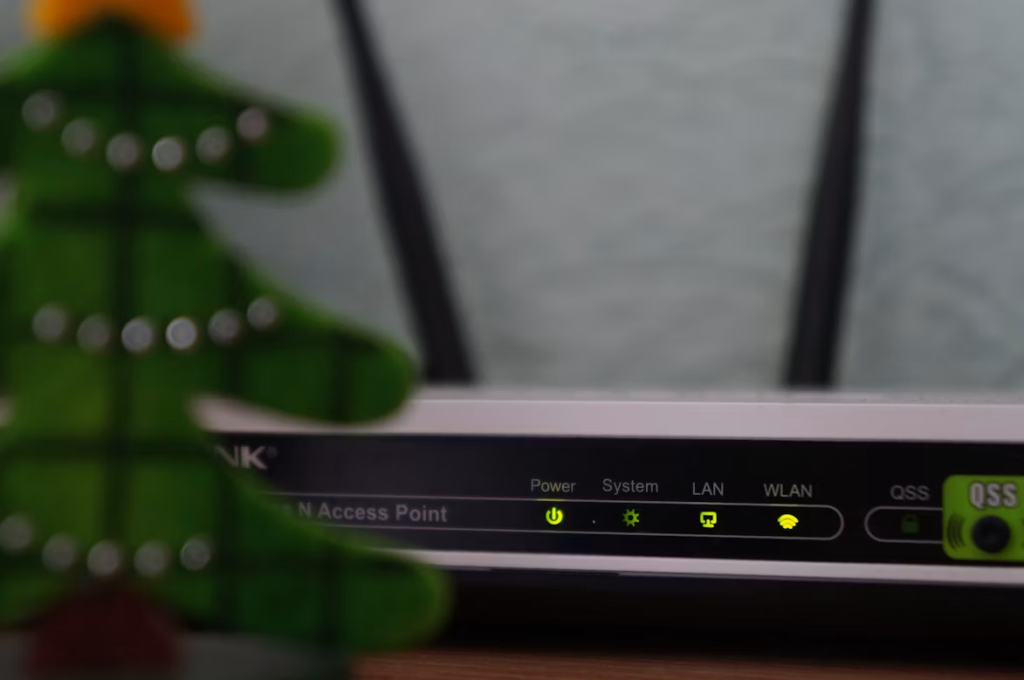
Bluetooth operates on the highly crowded 2.4GHz frequency. If your HP laptop is sitting right next to your Wi-Fi router, or if you are using a poorly shielded USB 3.0 hub, the physical interference can actually scramble the Bluetooth signal.
Unplug any unnecessary USB peripherals and move into a different room away from your router. If the headset suddenly connects and plays audio, you have an interference problem, not a hardware failure.
- The Native Windows Troubleshooter
It is always best to stick to native tools rather than downloading bloated, third-party “driver updater” apps, which are often just resource-heavy web wrappers that cause more problems than they solve.
The built-in Windows troubleshooter can occasionally catch a misconfigured registry key that manual checks miss.
- Open Settings (Windows Key + I) and navigate to System > Troubleshoot > Other troubleshooters.
- Click Run next to the Bluetooth option. Let Windows cycle through its automated checks and apply any background fixes.
- The Final Choice: Updating the BIOS
If your HP computer chronically drops Bluetooth connections across multiple different pairs of headphones, the motherboard itself might be struggling to manage the hardware. A BIOS update can potentially patch these fundamental system flaws.
- Go directly to the official HP Customer Support website and enter your exact laptop serial number.
- Look for a recent BIOS or UEFI update under the software and driver downloads.
Crucial step: Ensure your laptop is plugged directly into wall power before running a BIOS update. Follow the on-screen prompts carefully, and do not turn the computer off while it flashes the motherboard.
Also Read: The Cheat Codes of ChatGPT: Here Are 32 Shortcuts to Force Better Outputs Instantly
Frequently Asked Questions
Why do my headphones work perfectly with my phone, but not my HP laptop?
Phones are generally much more aggressive about grabbing and holding onto a Bluetooth connection. If your headphones support multi-point pairing, they might be defaulting to your phone.
Turn off your phone’s Bluetooth temporarily to force the connection to your PC. If that fails, the laptop’s specific Bluetooth driver is likely outdated or corrupted.
Why does my audio sound robotic or muffled when I join a call?
Windows often splits wireless headsets into two separate profiles: “Stereo” (for high-quality media) and “Hands-Free AG Audio” (for calls). When you activate the microphone, Bluetooth bandwidth limits force the audio quality to drop.
If you are just listening and not speaking, make sure you have “Stereo” selected as your output device by clicking the speaker icon in your taskbar.
Can I fix a frozen Bluetooth connection without restarting my whole computer?
Yes, you can often restart just the Windows Bluetooth service itself. Press Windows Key + R, type services.msc, and hit Enter. Scroll down to Bluetooth Support Service, right-click it, and select Restart.
What if my older HP desktop doesn’t have built-in Bluetooth?
If you’ve dug through the Device Manager and cannot find a Bluetooth radio anywhere, your machine might not have the hardware installed.
The cheapest and easiest fix is to buy a USB Bluetooth adapter (often called a dongle) for under $15. Plug it into an empty USB port, and Windows will automatically install the drivers you need to connect your wireless headphones.
Conclusion
Hopefully, this guide got your audio flowing again. Dealing with HP computer wireless headphones not working rarely requires a trip to the repair shop; it is usually just a matter of peeling back the layers, from a simple battery check to resetting a stubborn Windows driver.
If one of these steps fixed the connection for you, drop a comment below and let us know which one did the trick. Or, if you encountered an entirely different tech gremlin along the way, share it. Your fix might just save the next reader an hour of troubleshooting!