Few things are more frustrating than pressing your Samsung Galaxy phone’s power button and getting absolutely no response. No screen, no vibration, no logo. Nothing.
If you’re wondering, “Why Did My Samsung Phone Stop Working?”, don’t assume the worst just yet. In many cases, a Galaxy device that won’t turn on isn’t necessarily broken. The issue could be something as simple as a drained battery, a faulty charging cable, or a minor software glitch.
Here are the first troubleshooting steps you should try before heading to a repair center.
Why Did My Samsung Phone Stop Working? Here’s How to Fix
1. Check If Your Phone Has Enough Charge

The most common reason a Samsung phone won’t turn on is a completely drained battery.
When the battery level drops extremely low, your phone may not respond immediately, even when you press and hold the power button. This can make it appear completely dead when it simply needs time to recharge.
What to Do:
- Connect your phone to a charger.
- Let it charge for at least 10 minutes.
- After charging, try turning it on again.
Keep in mind that charging times vary depending on the Galaxy model and battery condition.
Pro Tip: If you’re charging through a computer’s USB port, the power output may be too low. Use a wall charger whenever possible for faster and more reliable charging.
Check: Why ChatGPT Gets Things Wrong (And How to Make It Right)
2. Make Sure You’re Using a Compatible Charger
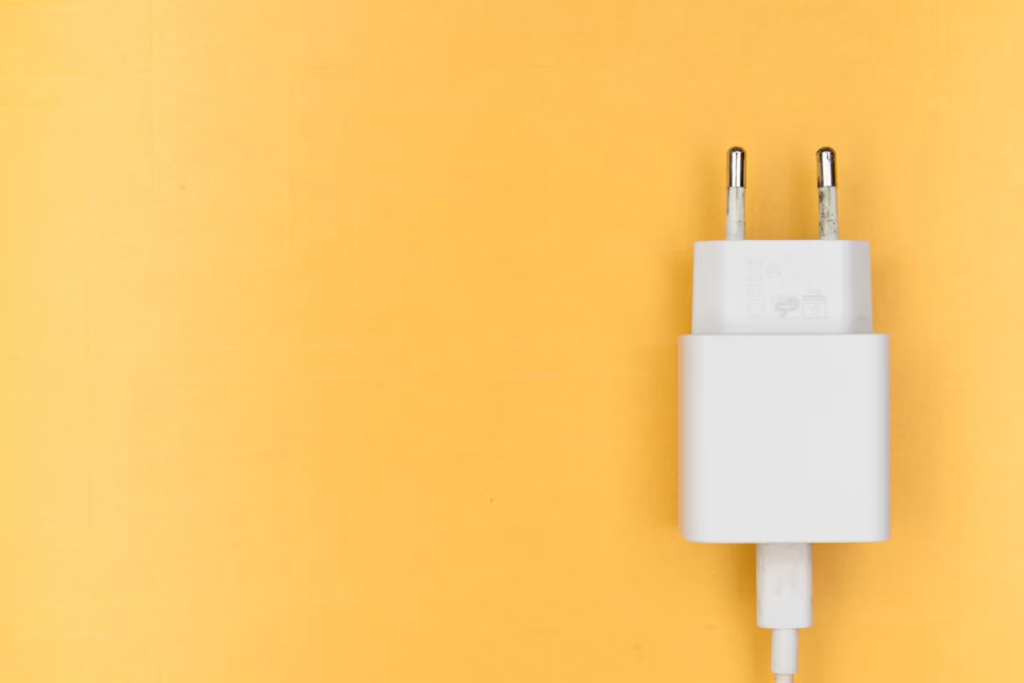
Not all chargers are created equal.
Using an incompatible charger can prevent your phone from charging properly. In some cases, incorrect voltage or amperage can even damage the device over time.
What to Check:
- Use an original Samsung charger whenever possible.
- Ensure the charging cable and adapter are designed for your Galaxy device.
- Avoid low-quality third-party accessories.
A genuine Samsung-certified charger helps ensure safe and efficient charging performance.
Read: Laptop Pointer Not Moving After Startup? Try These Fixes
3. Inspect Your Phone, Cable, and Charger for Damage
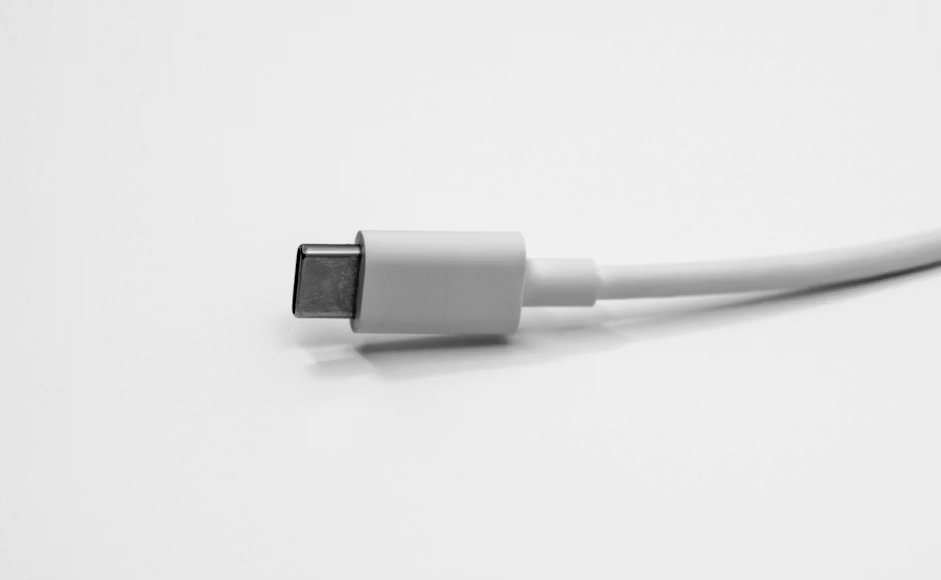
Physical damage can easily interfere with charging and power delivery.
Take a few minutes to inspect your phone and charging accessories carefully.
Check for:
- Bent or damaged charging pins
- Dust, lint, or debris inside the charging port
- Corrosion around connectors
- Frayed or broken charging cables
- Loose cable connections
- Signs of liquid exposure
You should also inspect the phone itself for:
- Swelling or battery bulging
- Overheating damage
- Cracks near the charging port
- Water damage indicators
If any component appears damaged, replacing the accessory or seeking professional service may be necessary.
Read: Why Did My Galaxy A23 Phone Suddenly Stop Working? Causes and Fixes
4. Force Restart Your Samsung Phone
Sometimes the phone isn’t actually powered off. Instead, the software may have frozen or become temporarily unresponsive.
A force restart can often resolve these minor system issues.
How to Force Restart:
- Press and hold the Side key and Volume Down button simultaneously.
- Continue holding both buttons for more than 7 seconds.
- Wait for the Samsung logo to appear.
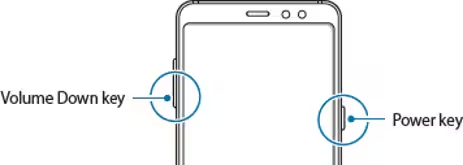
This process won’t delete your data and is one of the quickest ways to fix temporary software glitches.
5. Know When It’s Time for Professional Repair
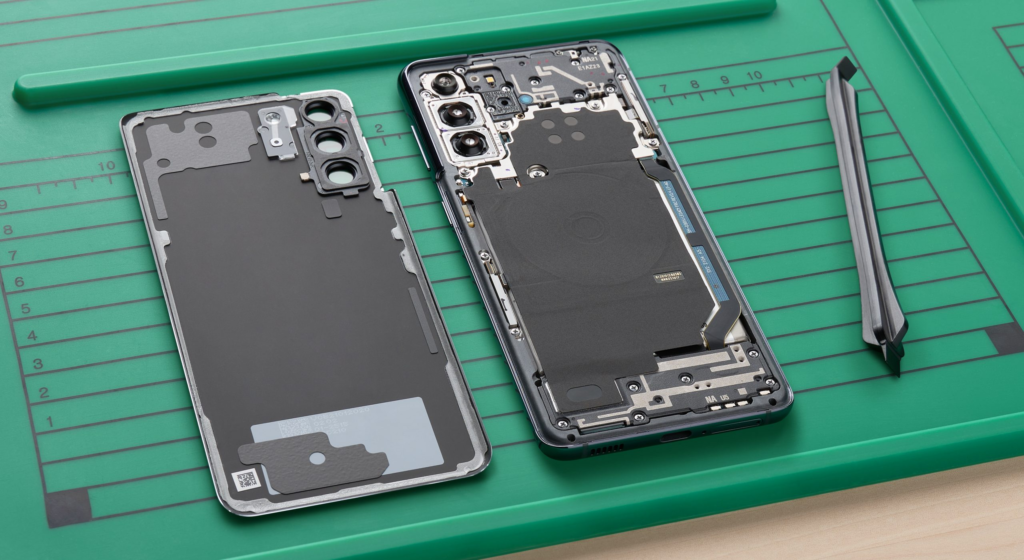
If you’ve tried charging the device, tested a compatible charger, checked for physical damage, and performed a force restart without success, the issue may require professional diagnosis.
Possible causes include:
- Battery failure
- Charging port damage
- Motherboard issues
- Internal hardware faults
- Severe water damage
At this point, it’s best to contact an authorized Samsung service center or schedule a repair appointment.
Attempting advanced repairs yourself can potentially cause further damage and may void warranty coverage.
Final Thoughts
A Samsung phone that won’t turn on doesn’t always mean the device is permanently damaged. In many cases, the problem can be resolved with a simple charge, a different charger, or a quick force restart.
If you’ve been asking yourself, “Why Did My Samsung Phone Stop Working?”, it’s worth working through these troubleshooting steps before assuming the worst. You may be surprised how often a seemingly “dead” Galaxy phone comes back to life with a straightforward fix.
And if none of these solutions work, professional repair support is the safest next step to get your device running again.
Frequently Asked Questions (FAQs)
Why won’t my Samsung phone turn on even after charging?
If your Samsung phone still won’t turn on after charging for at least 10 minutes, the issue could be a faulty charger, a damaged charging cable, debris in the charging port, or an internal hardware problem. Try using a different compatible charger and perform a force restart before seeking repair.
How do I force restart a Samsung Galaxy phone?
Press and hold the Side key and Volume Down button simultaneously for more than 7 seconds. This forces the device to restart and can help resolve temporary software glitches.
How long should I charge a dead Samsung phone before turning it on?
Samsung recommends charging the device for at least 10 minutes before attempting to power it on. If the battery is deeply discharged, it may require additional charging time.
Can a damaged charging cable prevent my Samsung phone from turning on?
Yes. A damaged or low-quality charging cable may not deliver sufficient power to the device. Always inspect your cable for wear and tear and use a genuine Samsung-certified charger whenever possible.
What should I do if my Samsung phone got wet and won’t turn on?
Do not attempt to charge the device immediately. Dry the phone thoroughly and inspect it for signs of water damage. If the phone remains unresponsive, contact an authorized Samsung service center for professional assistance.
Is it safe to use third-party chargers with Samsung phones?
It is safest to use genuine Samsung chargers or certified accessories that meet Samsung’s specifications. Incompatible chargers may charge slowly, fail to charge the device, or potentially cause damage.
When should I take my Samsung phone to a service center?
If your phone still won’t power on after charging, checking for damage, testing a compatible charger, and performing a force restart, it’s time to visit an authorized service center. The issue may involve the battery, charging port, or internal hardware.
Will force restarting my Samsung phone erase my data?
No. A force restart simply reboots the device and does not delete your photos, apps, contacts, or other personal data.