You’ve just gotten back from a trip, or finished a long video shoot, or finally dug out an old memory card to retrieve some cherished photos. You slide the SD card into your computer, anticipating that satisfying little ding of connection.
Instead, you get a terrifying pop-up: “You need to format the disk in drive D: before you can use it.”
I remember the exact moment this happened to me. I was transferring footage from a finicky, slightly older mirrorless camera. I had just shot a friend’s wedding ceremony.
I plugged the card into a USB hub, the connection dropped for a fraction of a second, and suddenly, my Mac was looking at me like it had never seen this piece of plastic before.
The sheer panic of thinking I had just deleted a wedding is a unique kind of adrenaline.
Do not click format just yet. Your files haven’t vanished into thin air. Right now, your computer can’t read the card’s directory structure. Here is exactly what is happening, and how you can get your data back.
What is Actually Happening?
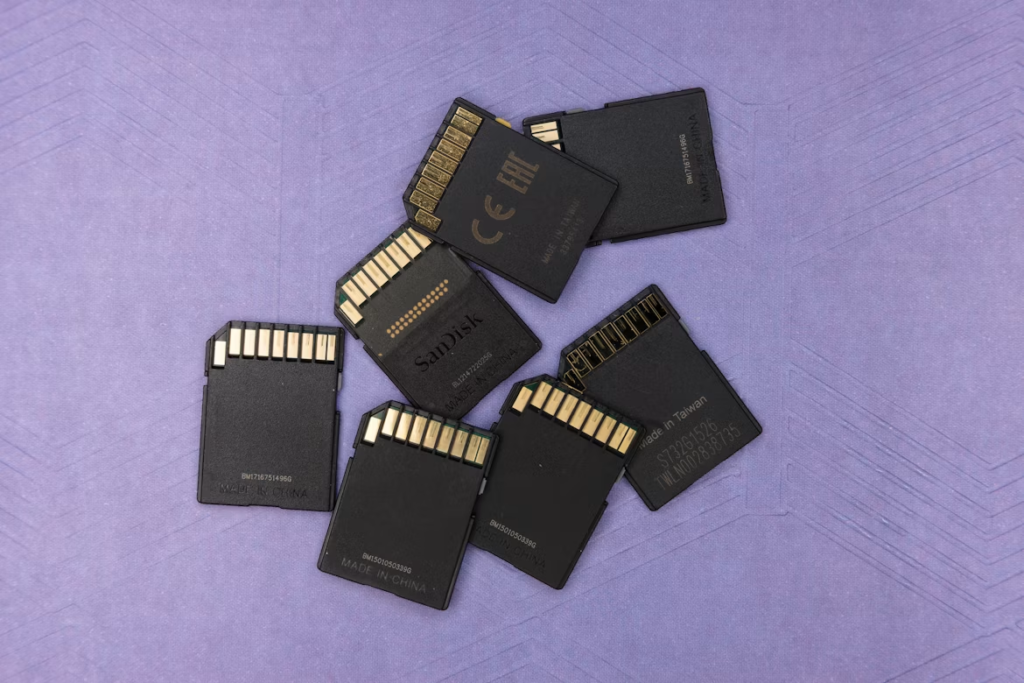
To understand why your computer is suddenly acting amnesiac, you need to understand how SD cards store data.
File System Mismatch (Going RAW)
SD cards use specific file systems, usually FAT32 or exFAT, to organize data. Think of this file system like the table of contents in a massive book.
When that table of contents gets scrambled, corrupted, or deleted, the computer looks at the card and sees what is known as a “RAW” drive.
It assumes the book is entirely blank, even though all the chapters (your photos and files) are still perfectly intact on the pages.
The Unsafe Ejection
This is the number one culprit. If you pull an SD card out of a camera or computer while it is in the middle of a read/write cycle, the device doesn’t get a chance to finish updating that table of contents.
The file system gets left in a messy, half-written state, triggering the format error the next time you plug it in.
Wear and Tear
Flash memory doesn’t last forever. SD cards have a finite number of read/write cycles. Over time, physical sectors on the card simply go bad and die. If a sector containing critical file system data dies, you’ll get the format prompt.
OS Quirks and Bugs
Sometimes, it’s not the card’s fault at all. Operating systems can be notoriously ungraceful when handing off external drives.
Windows might aggressively flag an exFAT card formatted on a Mac as corrupted simply because it didn’t eject perfectly, throwing a tantrum rather than trying to read the remaining healthy data.
Also Read: The Cheat Codes of ChatGPT: Here Are 32 Shortcuts to Force Better Outputs Instantly
The Triage Protocol (What NOT to Do)
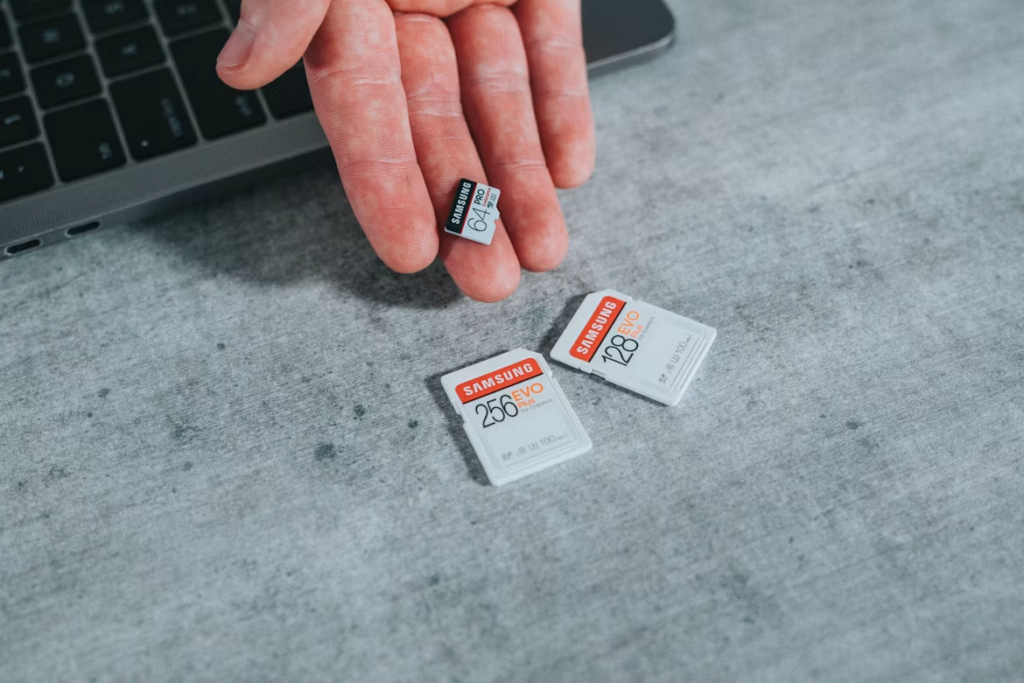
When you see the format prompt, you are in triage mode. Your actions in the next five minutes determine if you get your data back.
Do Not Click “Format”
A “Quick Format” wipes the table of contents clean and marks the entire drive as empty space. A “Full Format” actively overwrites everything with zeros.
While data recovery experts can sometimes reverse a Quick Format, you are making your life infinitely harder. Just click “Cancel.”
Stop Writing to the Card
Do not take another picture. Do not try to move files onto the card. Because the computer thinks the card is empty, any new data you put on it will physically overwrite your “invisible” older files.
Step-by-Step Recovery
Ready to save your files? Let’s go through the escalation ladder.
Step 1: The Physical Sanity Checks
Before doing anything technical, change the physical variables. Try plugging the card into a different USB port. Swap out the SD card reader for another one.
Try plugging it into a completely different computer (ideally swapping between a PC and a Mac, if you have access to both). Sometimes, the SD card is perfectly fine, and it’s the hardware bridge or the USB controller that is failing.
Step 2: Native OS Tools (The Command Line Fix)
If the computer recognizes the drive letter but just won’t open it, you might be able to repair the file system table using built-in OS tools.
On Windows: Open the Command Prompt as an administrator and type chkdsk X: /f (replacing “X” with the drive letter of your SD card). This tells Windows to check the disk and fix file system errors.
On macOS: Open Disk Utility, select the grayed-out SD card on the left, and click First Aid at the top.
Step 3: Data Recovery Software (The Extraction)
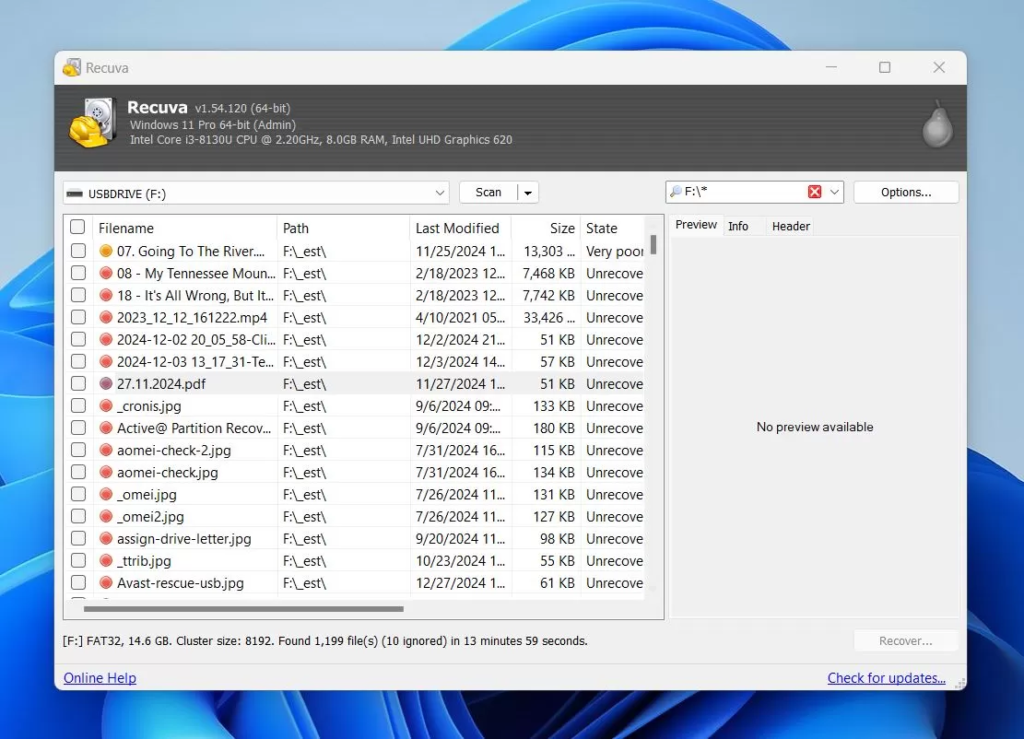
If the native tools fail, or the drive shows up as “RAW” in your disk manager, you need to extract the raw files directly from the memory blocks.
You can use solid, reliable software like Recuva (great, free GUI tool for Windows) or TestDisk/PhotoRec (a powerful, open-source command-line tool available for both Mac and PC).
These programs ignore the broken table of contents, scan the actual flash memory for recognizable file signatures (like .JPG or .MP4), and pull them to safety on your computer’s hard drive.
Also See: Why Is My Google Search Going to Yahoo? (And How to Fix It)
Moving Forward
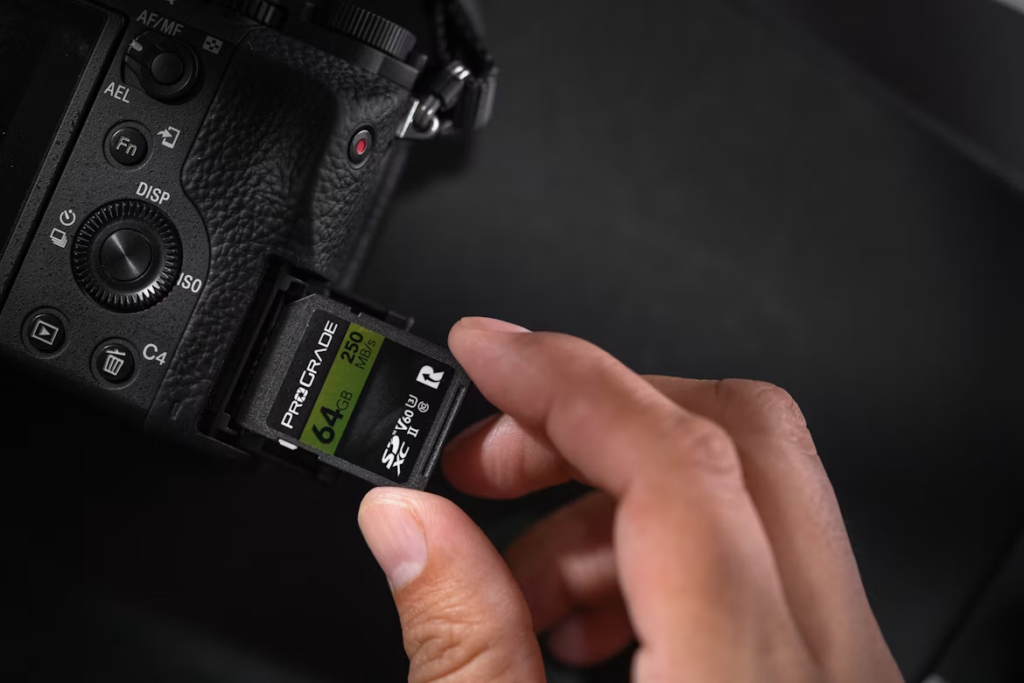
So, you ran the software, you extracted your files, and your data is safe on your computer. Now what?
Now that your files are backed up, you finally have permission to click “Format.” Formatting the card will rebuild the file system from scratch. If the card formats successfully and works, it was likely just a software bug or an unsafe ejection. If the format fails, the card is physically dead and belongs in the bin.
The Rule of 3-2-1: Let this heart attack serve as a gentle reminder: hardware always, eventually, fails. Protect your future self by adopting the 3-2-1 backup rule: keep 3 copies of your data, on 2 different types of media, with 1 copy stored off-site (like in the cloud).
Your memory card isn’t a permanent vault; it’s just a temporary taxi cab for your files. Get them out of the cab and safely home as soon as you can.
Frequently Asked Questions
Can I still get my photos back if I accidentally clicked “Format”?
Yes, in most cases. By default, Windows and macOS perform a “Quick Format.” This process only deletes the file directory. It doesn’t actually erase the data blocks containing your photos.
As long as you haven’t taken any new photos or saved new files to the card (which would overwrite the old data), recovery software like Recuva or PhotoRec can usually still find and restore your files.
Why do I get this error more often with micro SD cards?
Micro SD cards are incredibly fragile and typically rely on a secondary plastic adapter to fit into standard SD card readers. Those adapters are notorious for loose contacts and dust buildup. Even a microscopic wiggle inside the adapter during a file transfer can interrupt the connection and corrupt the file system.
How do I stop this from happening in the future?
The best defense is always using your operating system’s “Safely Eject” or “Unmount” feature before physically pulling the card out. Additionally, make it a habit to format your SD card inside your camera rather than on your computer. Cameras build the file system perfectly tailored to their own read/write processes, which reduces the chance of future directory errors.
Can a dirty card trigger a format error?
If the gold contact pins on the back of the SD card are dirty, dusty, or covered in finger oils, the card reader can’t establish a steady connection. Gently wiping the gold pins with a microfiber cloth and a drop of highly concentrated isopropyl alcohol can sometimes fix a card that refuses to read properly.