Your Samsung Galaxy A23 was working perfectly a second ago, and now it’s a lifeless brick. The screen is black, the buttons aren’t responding, and panic is starting to set in.
Take a breath. A sudden shutdown rarely means your phone is permanently dead.
Like any phone, the Galaxy A23 can easily succumb to system crashes, rogue apps, or thermal throttling, forcing it to lock up or shut off to protect itself.
Before you start checking your warranty status or shopping for a replacement, here is exactly why your phone suddenly stopped working, and the step-by-step fixes to bring it back to life.
Why Did My Galaxy A23 Phone Suddenly Stop Working? Quick Diagnostic Matrix
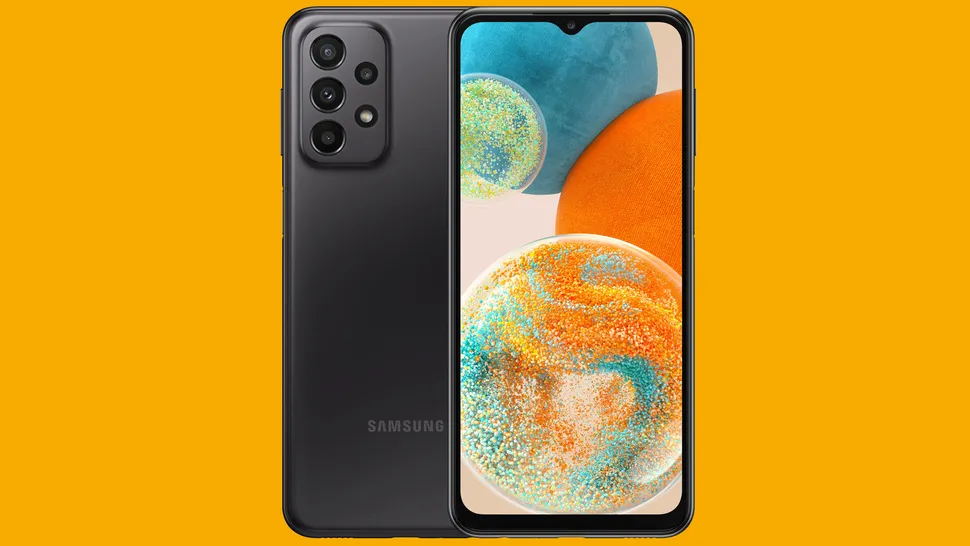
When your phone dies out of nowhere, you want answers fast. Before diving into the detailed troubleshooting, use this quick diagnostic cheat sheet to identify your exact symptom and jump straight to the most likely fix.
Symptom
Most Likely Culprit
First Step to Try
Completely black screen
System crash or dead battery
Forced Restart
Freezes in a specific app
Software conflict
Boot into Safe Mode
Unusually hot, then shuts off
Thermal throttling
Remove case and let cool
Randomly reboots
Storage full or OS bug
Free up space or update OS
The “Black Screen of Death” (Power & Boot Issues)
If your Galaxy A23 is completely unresponsive, you are likely dealing with the classic “Black Screen of Death.” This usually happens when the operating system crashes so hard that the display stays off, making the phone look dead when it’s actually just frozen in a suspended state.
- Perform a Forced Restart
This is the holy grail of Android troubleshooting. A forced restart simulates a battery pull, physically interrupting the power cycle and forcing the hardware to reboot. It will not delete any of your data.
- Press and hold the Volume Down button and the Power button simultaneously.
- Keep them held down for 10 to 15 seconds.
- Once you see the Samsung logo appear, release both buttons.
- Inspect the Charging Port
If the forced restart didn’t work, your battery might be completely drained. But before you plug it in, check your USB-C port.
Modern ports are notorious magnets for pocket lint and debris, which gets packed down every time you insert a cable. If the pins can’t make a solid connection, your phone won’t charge.
Shine a light into the port and use a wooden toothpick (never metal) to gently scoop out any compacted gunk.
- The Trickle Charge
If the battery is profoundly dead, plugging it in might not yield an immediate charging icon. The phone needs to build up a base level of power just to turn on the display.
Plug your A23 into a known-working charger and wall outlet, and leave it completely alone for at least 30 minutes before attempting another forced restart.
Also Read: HP Computer Wireless Headphones Not Working? Here’s How to Fix It
Rogue Apps and System Overload
Under the hood, the Galaxy A23 runs on a Snapdragon 680 processor. While it’s a reliable chipset for everyday tasks, it isn’t built for heavy multitasking or processing poorly optimized software.
If you have too many resource-heavy apps running at once, or if a single app goes rogue, it can completely overwhelm the phone’s memory and cause it to lock up or shut down entirely.
To find out if a third-party app is causing your A23 to crash, you can boot the phone into Safe Mode. This runs the device with only its original, factory-installed software active, temporarily disabling everything you’ve downloaded.
- Turn the phone completely off.
- Press and hold the Power button until the Samsung logo appears on the screen.
- The moment the logo appears, release the Power button and immediately press and hold the Volume Down button.
- Keep holding Volume Down until the phone finishes booting up.
- You will see “Safe Mode” displayed in the bottom-left corner of the screen.
If your phone runs smoothly in Safe Mode without freezing or shutting down, a downloaded app is definitely causing the issue.
To fix it, restart your phone normally to exit Safe Mode, then go to Settings > Apps and start uninstalling your most recently added apps, until the stability issues stop.
Storage Chokeholds and Memory Limits
Your phone needs breathing room to function. Flash memory doesn’t just store your photos; the Android operating system actively uses free space to swap temporary files, process background tasks, and keep the UI running smoothly.
- The Capacity Limit
The Galaxy A23 typically comes with 64GB or 128GB of internal storage. By the time you account for the Android OS, pre-installed bloatware, heavy apps, and a few months of photos and videos, that space vanishes fast.
Once your storage crosses the 90% full mark, the operating system effectively starts suffocating. The phone will struggle to execute basic commands, leading to severe lag, apps force-closing, and eventually, sudden shutdowns.
Go to Settings > Battery and device care > Storage to check your usage. If you are in the red, start aggressively deleting large video files, clearing out your downloads folder, and offloading photos to a cloud service.
- Wipe the Cache Partition
If your storage isn’t completely maxed out but the phone is still choking and freezing, you might have corrupted temporary files jamming up the system.
Wiping the cache partition clears out the messy, leftover data from previous OS updates and apps, and it will not delete any of your personal files or photos.
Note: On newer Samsung software, you may need to plug the phone into a computer to access this menu.
- Turn off your Galaxy A23 completely.
- Plug the phone into a computer using a USB-C cable.
- Press and hold the Volume Up and Power buttons at the same time.
- When the Samsung logo appears, release the Power button but keep holding Volume Up.
- Release the Volume Up button when you see the black Android Recovery screen.
- Use the Volume buttons to scroll down and highlight Wipe cache partition.
- Press the Power button to select it, then confirm by selecting Yes.
- Once it finishes (it only takes a second), select Reboot system now.
Environmental and Hardware Realities
Sometimes the issue isn’t a software bug or a storage chokehold. It’s the physical environment or the hardware itself. Smartphones are packed with microscopic components that are highly sensitive to temperature and physical trauma.
- Thermal Throttling
Modern processors generate a lot of heat, and smartphones rely on passive cooling (the chassis itself) to dissipate it.
If your Galaxy A23 gets too hot, the system will aggressively slow down to reduce heat generation, a process called thermal throttling. If the temperature continues to rise, the phone will completely shut itself down to prevent the battery from swelling or the internal components from melting.
This typically happens if you leave the phone in direct sunlight, use intensive GPS navigation on a hot car dashboard, or game for hours while the device is wrapped in a thick, heat-trapping rugged case.
The Fix: If the phone is hot to the touch and shuts off, remove the case immediately. Move it to a cool, shaded area and let it sit for at least 20 minutes before trying to turn it back on.
Never put a hot phone in the fridge or freezer. The rapid temperature change causes internal condensation, which will short-circuit the motherboard.
- Silent Hardware Damage
The reason your phone died today may be because of a drop that happened a week ago.
When a phone hits a hard surface, the energy reverberates through the chassis. Even if the screen doesn’t crack, that impact can slightly loosen an internal battery connector or the delicate ribbon cable that powers the display.
Over days or weeks of normal use, sliding it into your pocket, tossing it on a desk, that loosened connection finally gives way.
If your screen is completely black but you can still hear notification chimes or feel the phone vibrate when you hold the power button, the phone is actually “on.” You just have a disconnected or dead display panel.
Unfortunately, there is no software fix for this; the phone will need to be opened up by a technician to reseat or replace the cable.
The Nuclear Option: Factory Data Reset
If you’ve tried everything above and your Galaxy A23 is stubbornly stuck in a boot loop or frozen permanently on the Samsung logo, you have one last software card to play: the factory reset.
Let’s be perfectly clear. A factory data reset will completely wipe your phone. It deletes all your photos, apps, texts, and settings, returning the system to the exact state it was in when you first took it out of the box. If your files aren’t backed up to Google Drive or Samsung Cloud, they will be gone forever. Treat this strictly as a last resort.
Since the phone isn’t booting to the home screen, you can’t just open the Settings app. You will need to execute the reset via the Android Recovery menu.
- Turn off your Galaxy A23 completely and plug it into a computer using a USB-C cable.
- Press and hold the Volume Up and Power buttons simultaneously.
- Release the Power button the moment the Samsung logo appears, but keep holding Volume Up until the black Recovery screen loads.
- Use the Volume buttons to navigate down to Wipe data/factory reset.
- Press the Power button to select it.
- Scroll down to Factory data reset and press the Power button to confirm.
- Wait a few moments for the wipe to finish, then select Reboot system now.
Final Words
Dealing with a sudden phone failure is incredibly frustrating, but a black screen on your Galaxy A23 is usually just a temporary software hiccup rather than a death sentence.
A simple forced restart, clearing out a stubborn cache, or isolating a poorly optimized app in Safe Mode is often all it takes to get you back online.
However, if you’ve gone through every step in this guide, including the nuclear option of a factory reset, and your phone still refuses to wake up, you are almost certainly looking at a hardware failure.
In that case, reach out to Samsung Support, or take your phone to an authorized repair center to have the internals professionally diagnosed.
Frequently Asked Questions
Will a forced restart delete my photos, texts, or apps?
No. A forced restart (holding Volume Down + Power) is the hardware equivalent of pulling the plug on a frozen computer and plugging it back in. It simply interrupts the power cycle to force a reboot. It does not delete, alter, or wipe any of your personal data.
How can I tell if my phone is dead, or if just the screen is broken?
Plug your Galaxy A23 into a charger and leave it for 15 minutes, then call it from another phone. Try toggling the physical ringer switch, or press and hold the power button.
If you hear rings, notification chimes, or feel the haptic vibration motor buzz, your phone’s motherboard is working fine, the display panel or its internal ribbon cable is dead and needs to be replaced.
My phone shuts down randomly even when the battery says 30%. Why?
This points to battery degradation or a calibration error. Lithium-ion batteries degrade over time, and a degraded cell can experience sudden voltage drops when the processor demands power.
When the voltage drops too low, the phone shuts off to prevent damage, even if the software previously read “30%.” If this happens frequently, you need a battery replacement.
Is it worth paying to repair a Galaxy A23 hardware failure?
It depends on the component. The A23 is a budget-tier device. If the issue is a dead battery or a jammed charging port, local repair shops can fix this relatively cheaply, making it worth the cost.
However, if the phone requires a full motherboard replacement or a brand-new official screen assembly, the repair quote will likely exceed the current resale value of the phone. In those cases, it is more economical to upgrade.
Does leaving my phone plugged in overnight cause these random shutdowns?
Modern smartphones have power-management chips that cut off the electrical current once the battery reaches 100%, so leaving it plugged in overnight does not “overcharge” the device.
However, keeping lithium-ion batteries constantly pinned at 100% can accelerate long-term chemical degradation, which eventually leads to the battery voltage issues mentioned above.